Understanding a Worker's Invitation Status
Quick Tips
- Clients may require workers attending their site to check-in using either the iPRO Access mobile app or Sine. Alternatively, some clients sites may not require workers to check-in at all.
- A worker's "Invite status" indicates whether an invitation to join iPRO and download the iPRO Access mobile app has been sent, and if the worker has actioned it. Please note that this status does not reflect a worker's compliance status. For information regarding worker compliance, please refer: How do I check if a worker is compliant?
Quick navigation:
MY TEAM > WORKERS > Worker's Name > Invite status column.
iPRO Invitation Status
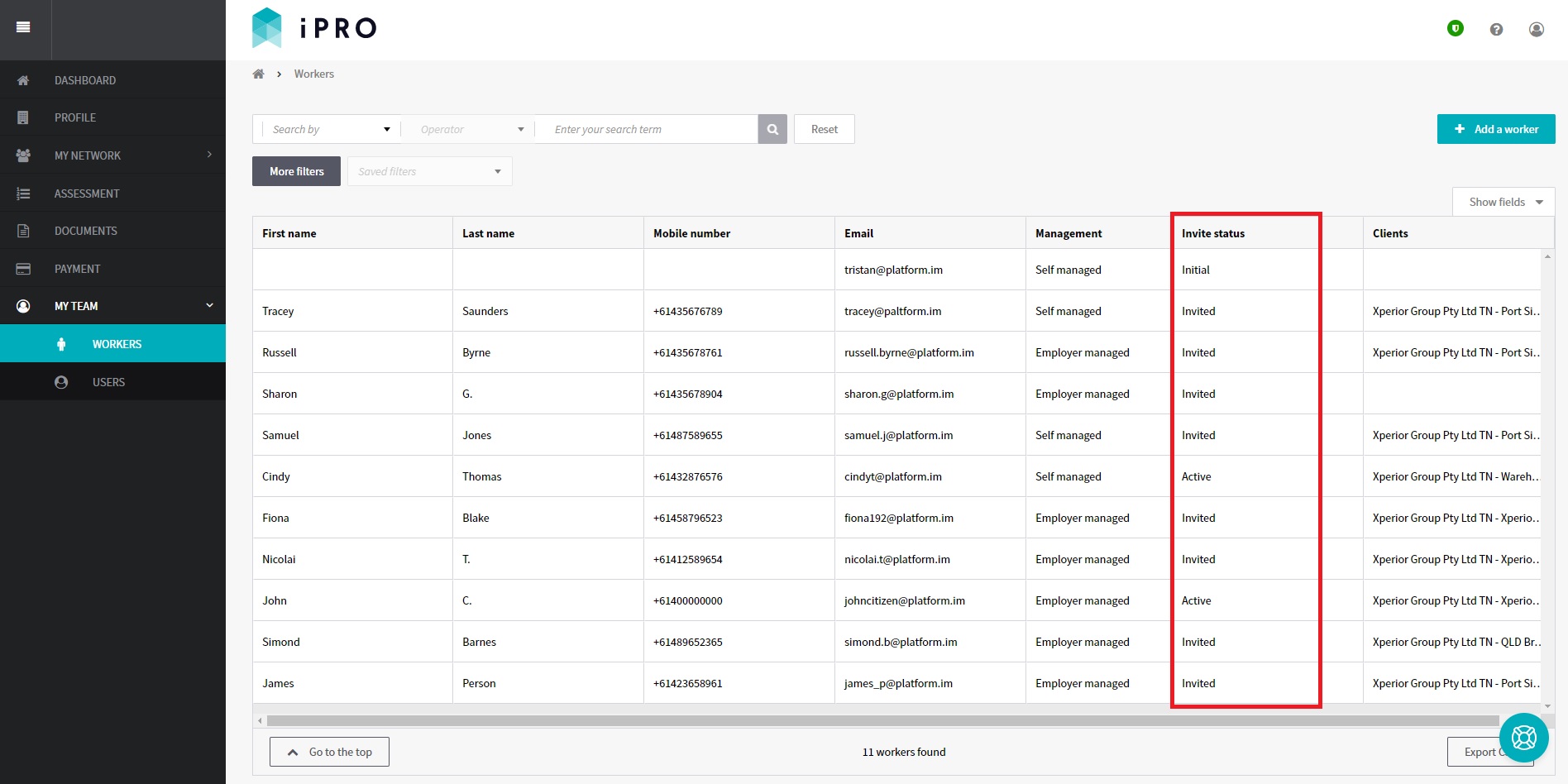
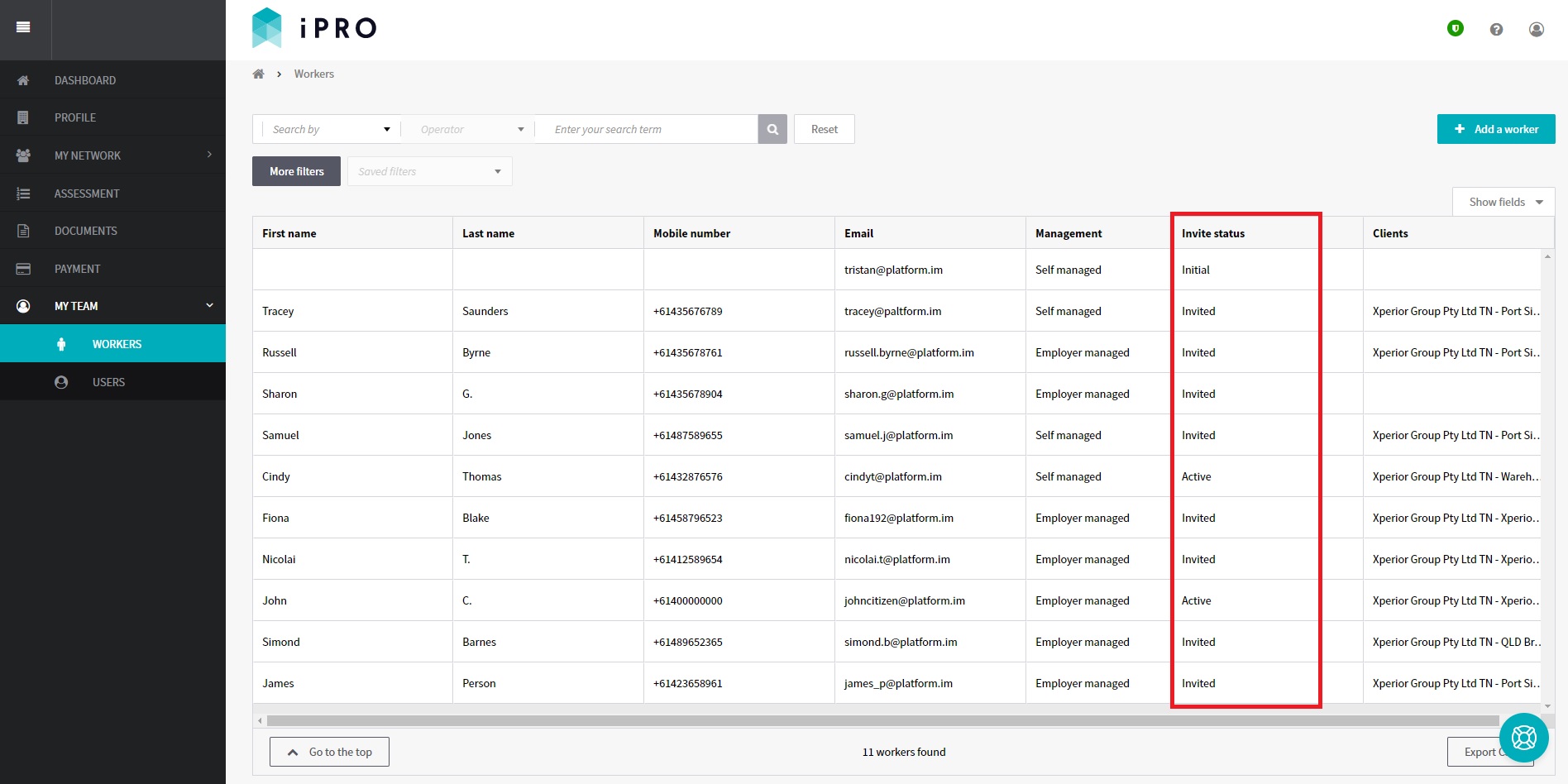
You can view the status of a worker's invitation in the "Invite status" column. This indicates whether an invitation to join iPRO and download the iPRO Access mobile app has been sent and if the worker has actioned it. For an explanation of each status, refer to the table below.
- Navigate to the MY TEAM > WORKERS section of your contractor account.
- Find the specific worker. You can use the filters at the top of the list to find the worker quickly.
- View the Invite status column.
Invite Status Definitions:
| STATUS | DEFINITION | REQUIREMENT
|
| Initial | Worker account has been created.
An invitation to join iPRO has not been sent to the worker. |
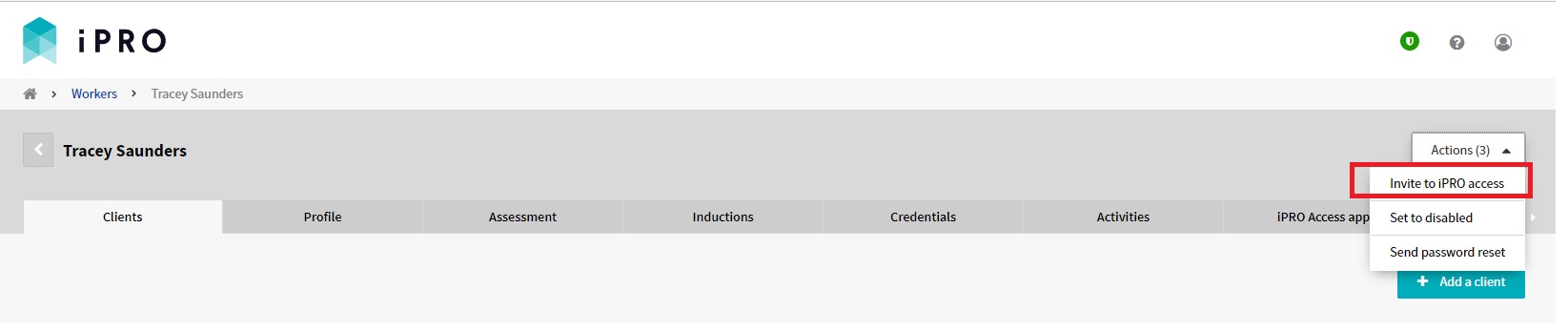
If you require the worker to complete all the compliance requirements at their end, and/or the client requires the worker to check-in onsite using the iPRO Access mobile app, click the worker's record to be directed to their individual page, and send the invitation via Actions (3) > Invite to iPRO Access.
|
| Invited | Worker account has been created.
An invitation to join iPRO has been sent to the worker's registered email address including a link to activate their worker account by setting a password. However, the worker is yet to set a password. |
If you require the worker to complete all the compliance requirements at their end, and/or the client requires the worker to check-in onsite using the iPRO Access mobile app, click the worker's record to be directed to their individual page, and resend the invitation via Actions (3) > Invite to iPRO Access..
|
| Active | Worker account has been created.
Worker has accepted the invitation and has set a password to activate their account. |
Click the worker's record to be directed to their individual page. Their Client Details and Worker Compliance will be shown under the Clients tab.
View the status in the ' Overall compliance' column. This status is based on the combined results of the 'Company status', 'Assessment status', 'Induction status', and 'Credential status'. |
| Disabled | The worker's access to their iPRO account has been disabled by the Contractor or iPRO Administrator.
|
To view Disabled workers, filter the worker list by using the criteria: Invite status is Disabled.
|