
How to Register your Business
On-boarding and Registering your business
To be eligible to work with your hiring client, your company is required to obtain WHS compliance pre-qualification. This is to ensure your company complies with relevant policies and legislative requirements.
Your client has engaged iPRO to manage their contractor compliance requirements. iPRO's contractor management solution is by invitation only, requiring a company to have received an invitation (by email) from their client, to register and connect with them on the iPRO Contractor Compliance platform.
A membership tier will be allocated to your company by your client; details of this will appear in the invitation, and a subscription fee may apply.
On-boarding
Step 1: Accept the invitation
Open your client's email invitation, and click Accept Invitation. You will be redirected to the registration page.
Alternatively, if you have been provided with an invitation code, visit our website: www.ipro.net, and then click Register in the top right corner.
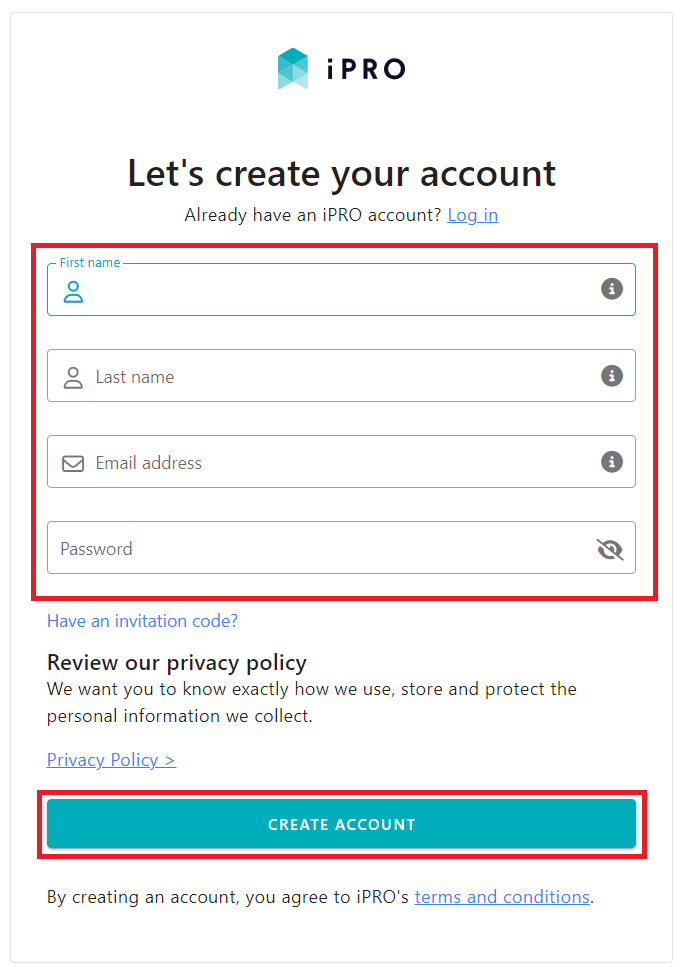
Step 2: Create User Account
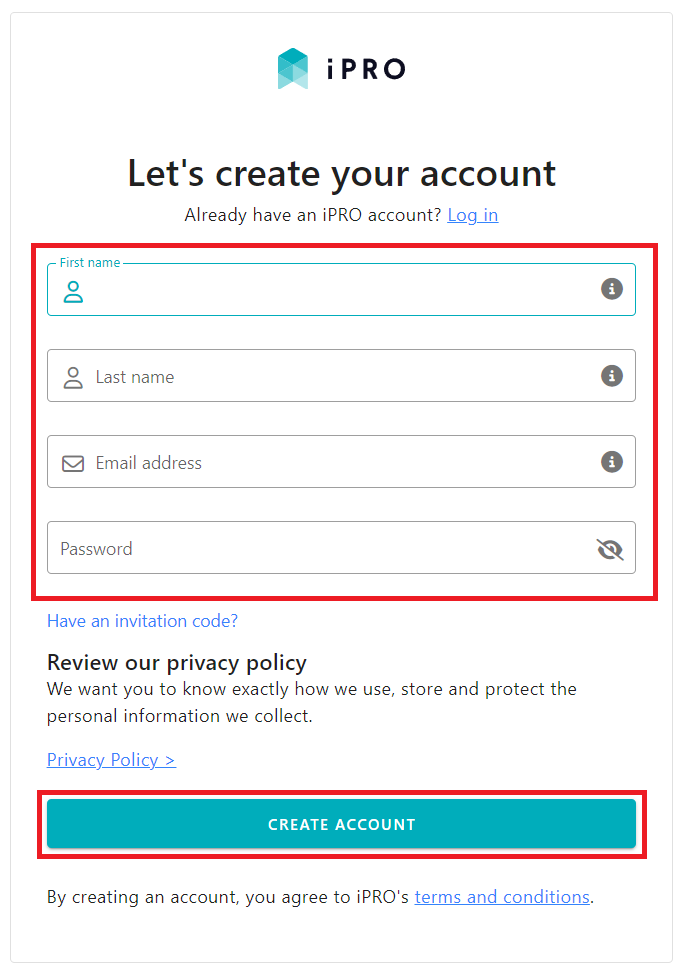
- Enter the required details and then click CREATE ACCOUNT.
Please note: The email address registered in iPRO will receive all automated notifications, including important updates about upcoming document expirations, compliance status changes, and subscription renewals. It is therefore essential that this mailbox is monitored regularly to ensure no critical information is missed.
- Password must be a minimum of 6 characters. All fields are mandatory.
- If you have been provided with an invitation code, click ' Have an invitation code?' then enter it here.
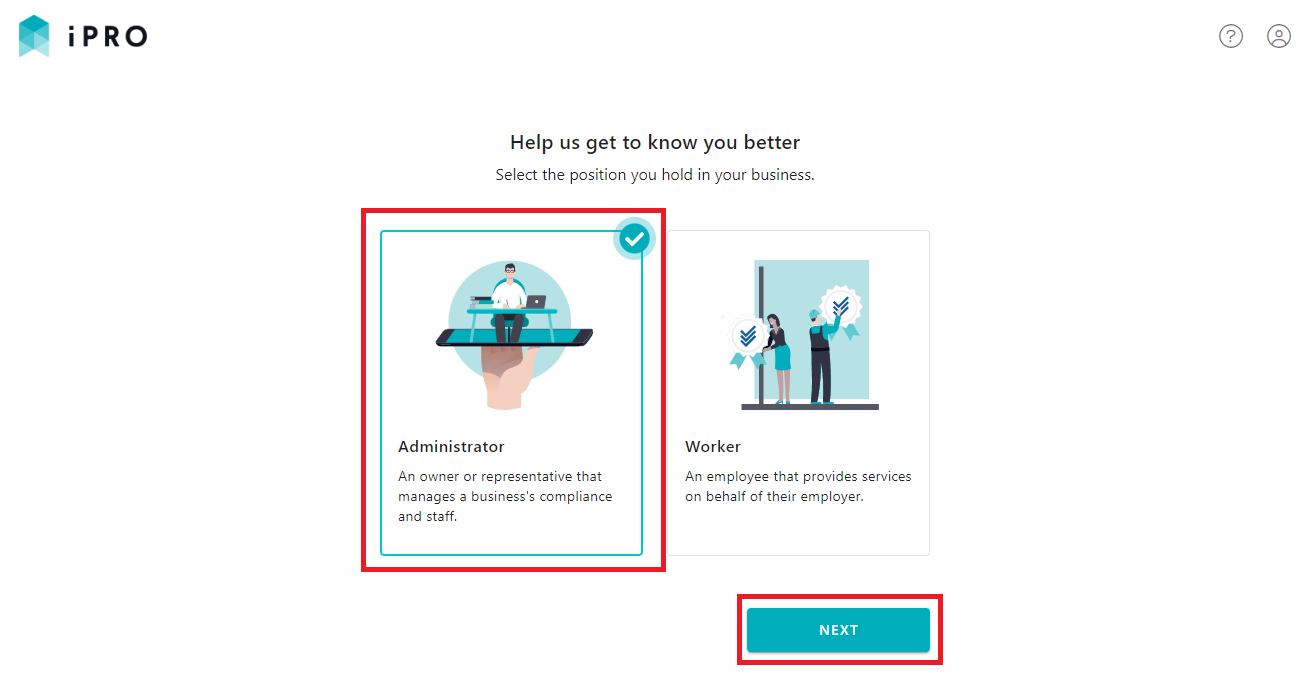
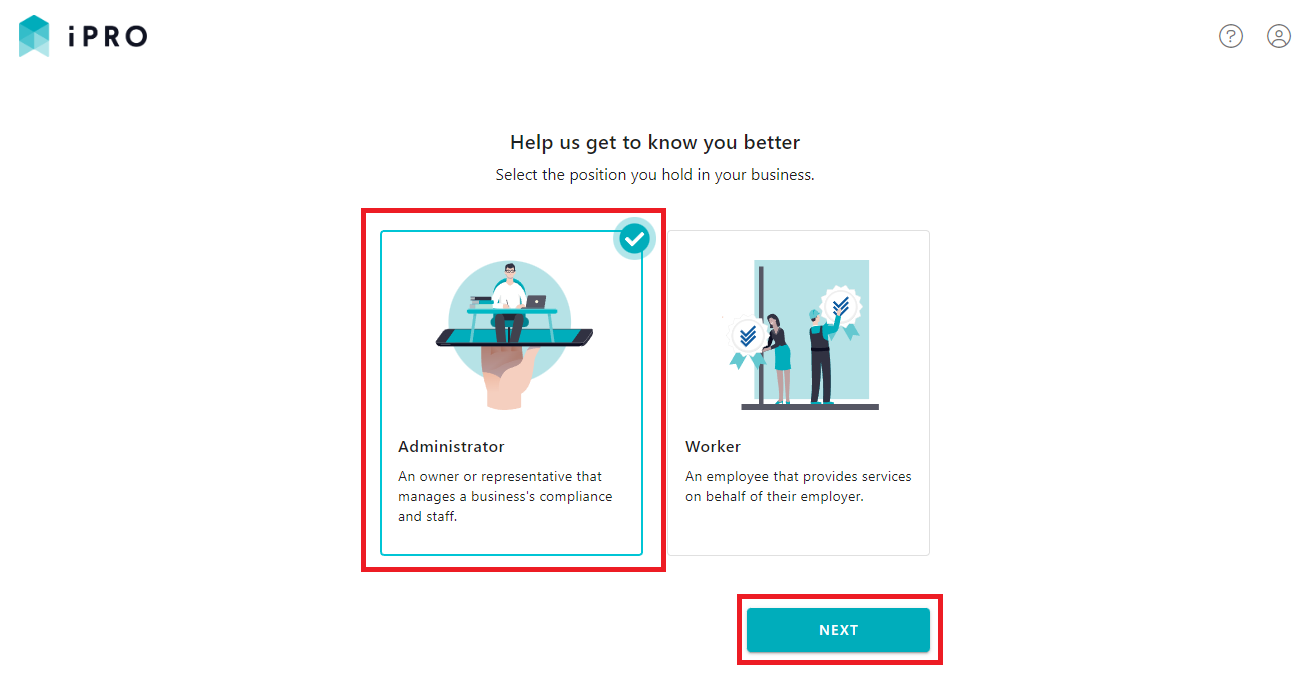
- Select the Administrator position, then click NEXT.
- Enter additional information to complete your user profile, then click SAVE PROFILE.
Follow the steps below to register your business.
Registering
Step 1: Create your company profile
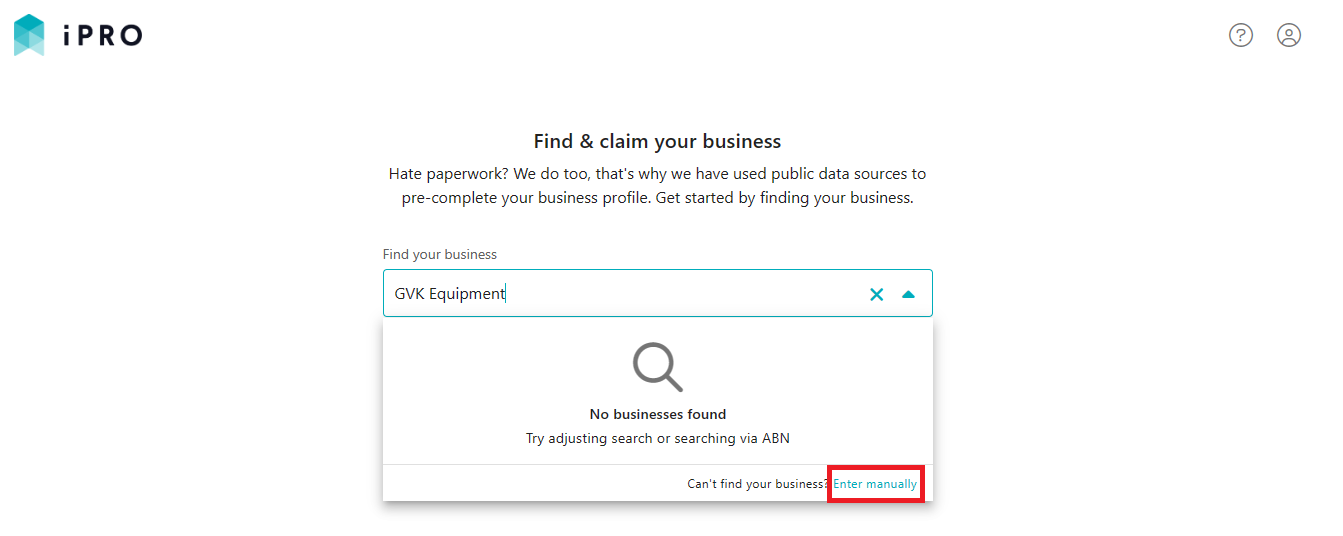
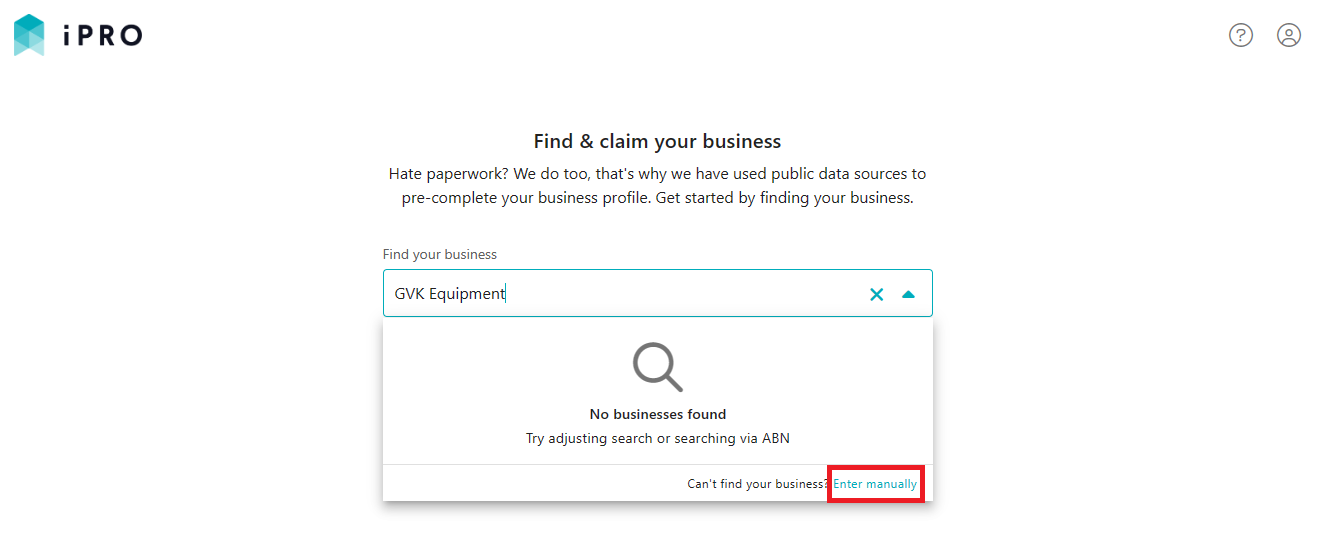
- Find your company by entering the trading name.
If found, your company is already registered in iPRO.
Click on the business to view the business details, then click CLAIM BUSINESS.
An automated email will be sent to the existing administrator/s requesting your access to the account. Once your request has been reviewed, you will be notified of the decision via an email. You will not be able to proceed further until your access request is approved.
If your company is not found, click Enter manually.
Add the business details, then click NEXT.
Scroll down and click Yes, I'm sure none of these is my business. Continue with creating a new business.
Click NEXT and then click CLAIM BUSINESS. A verification email will be sent to your registered email address.
- Confirm your email to claim the business, then click CLAIM BUSINESS again.
Note: If you do not see the verification email in your inbox, please check your junk/spam folder. - Provide additional business information, then click SAVE PROFILE to finish your business profile. You will be redirected to your client's profile page.
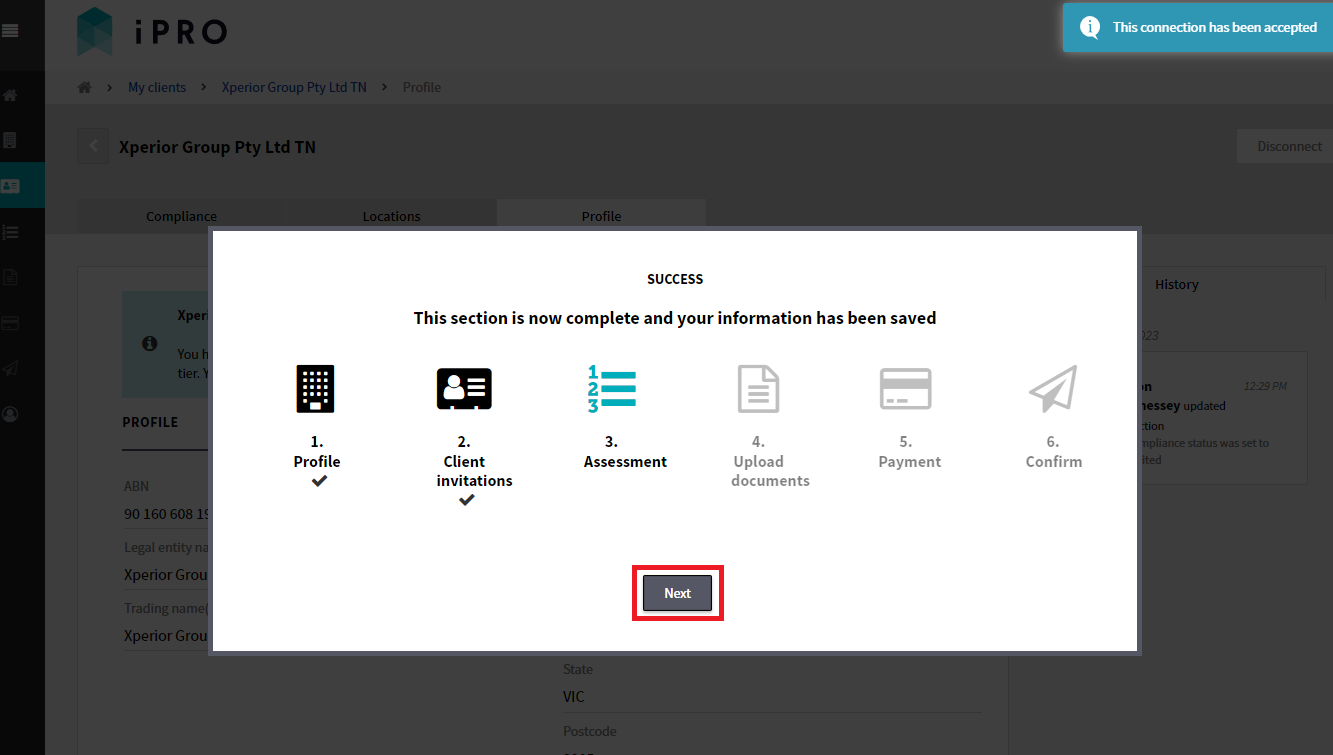
Step 2: Client Invitations
Click Accept invitation towards the top right corner of the page, then click OK to confirm connection with your client.
Step 3: Complete the Assessment
Click Next to initiate the assessment, provide a response to each question within each section, and then click Save.
Step 4: Upload Documents
- Click Next to be taken to the Documents list. Documents needing to be uploaded will appear with a status of Required.
Note: iPRO has direct access to government and trusted public data sources to check the validity of some documents. These documents will appear with a status of Verified (automatically). - For all Required documents, upload a .pdf file and enter document details. Click Save.
For more information, refer: Managing Contractor Documents.
Step 5: Make Payment (if applicable)
Some contractors will not be required to make a payment to activate a subscription; this is dependent on the membership tier allocated to them by their client. In such cases, this step will not appear.
- Click Next to be taken to the Payment details page.
- Select the Payment Plan (monthly or annual), enter the payment card details, then click SAVE.
Note: An invoice receipt will be emailed to the administrator/s once the payment has been processed.
Step 6: Confirm
Click Next to be taken to the declaration. Read and acknowledge the declaration, and then click Submit.
Your application will appear with a status of 'Application under review'.
iPRO will review your application within 5 business days. You can access your account after the application review has been completed. You will be notified upon completion via an email.
Thank you for registering your business in the iPRO Contractor Compliance system!