
Viewing a Worker's Compliance Status
Quick Tips
- To be compliant, both the worker and the company must fulfill all of the client's requirements.
- A worker's compliance status can be viewed from the All workers menu, or from the All companies menu.
- The 'Invite status' column in the worker list is not indicative of a worker's compliance status.
- To find the worker requirements for a particular location, select Location details from the Locations menu.
- If a specific worker is not visible, it may be because the worker is not linked to your client account. To resolve this, the contractor is to ensure the worker is correctly associated with your account.
Quick Navigation:
Log-in > My network > Workers > Worker name > Serviced locations > Overall compliance column
or
Log-in > My network > All companies > Company name > Workers > Worker name > Serviced locations > Overall compliance column
Viewing a Worker's Compliance Status from the All workers menu
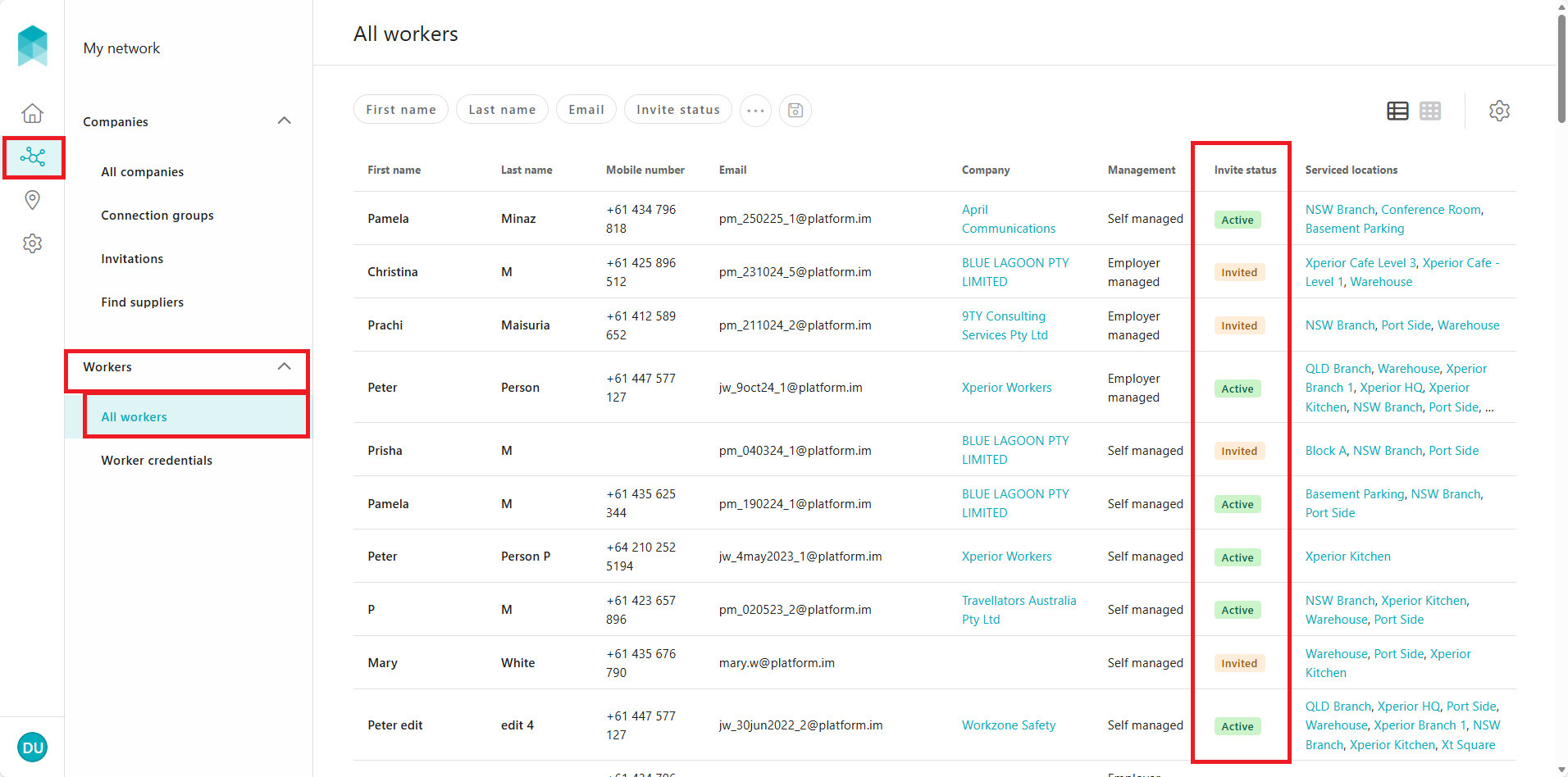
- Click My network, then click Workers > All workers. A list of your contractors' workers in your network will be displayed.
Please note, the status displayed in the worker list indicates a worker's invitation status; it is not indicative of their compliance status. For more information regarding "Invite status", please refer: Understanding a Worker's Invitation Status.
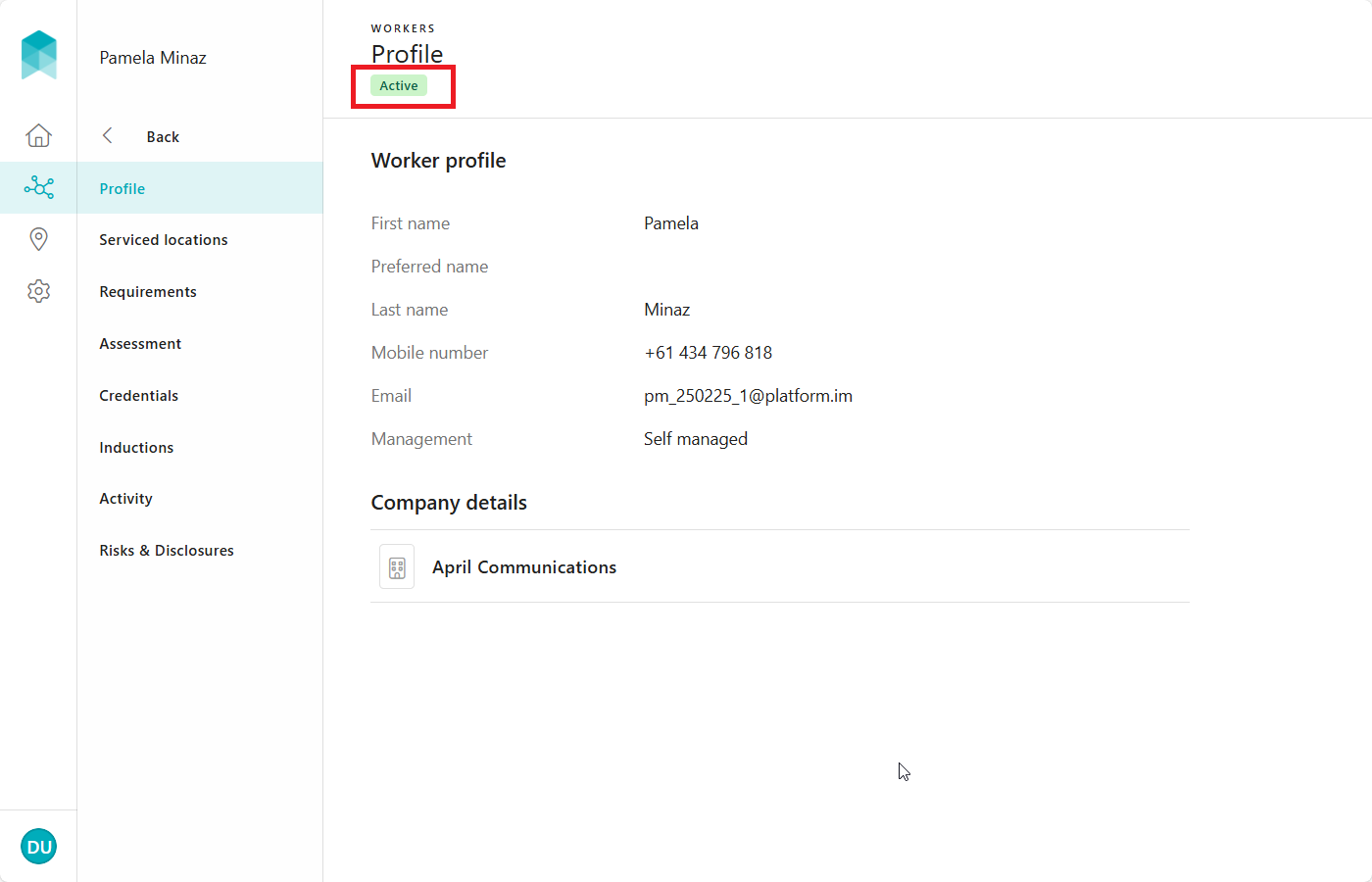
- Click the worker's record. Their Profile page will appear.
Tip: Use the search filters available at the top of the list to find the worker quickly.
Please note, the status displayed on the page indicates a worker's invitation status; it is not indicative of their compliance status. For more information regarding the invitation status, please refer: Understanding a Worker's Invitation Status.
-
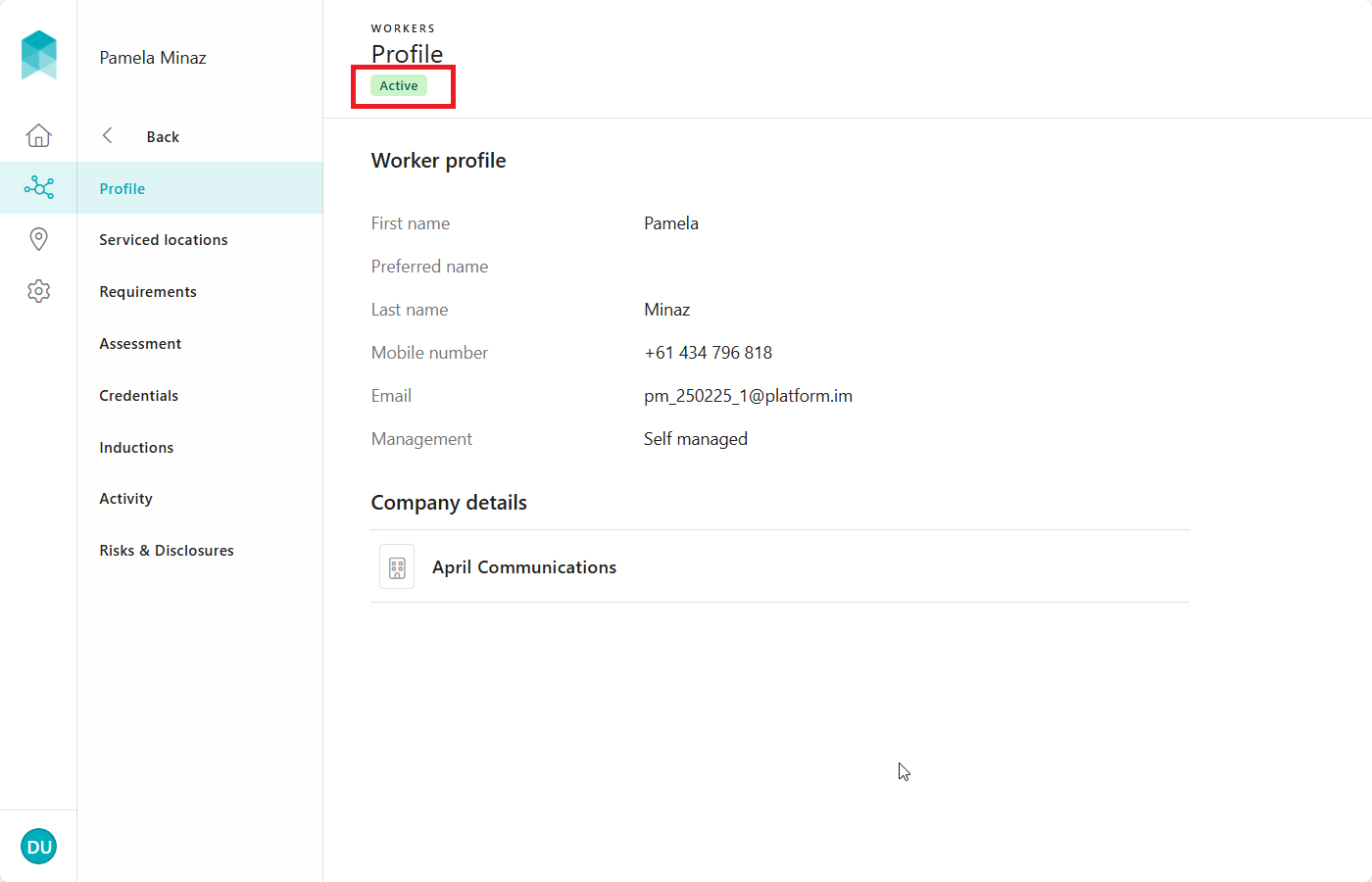
Click Serviced locations. A list of locations linked with the worker will be displayed.
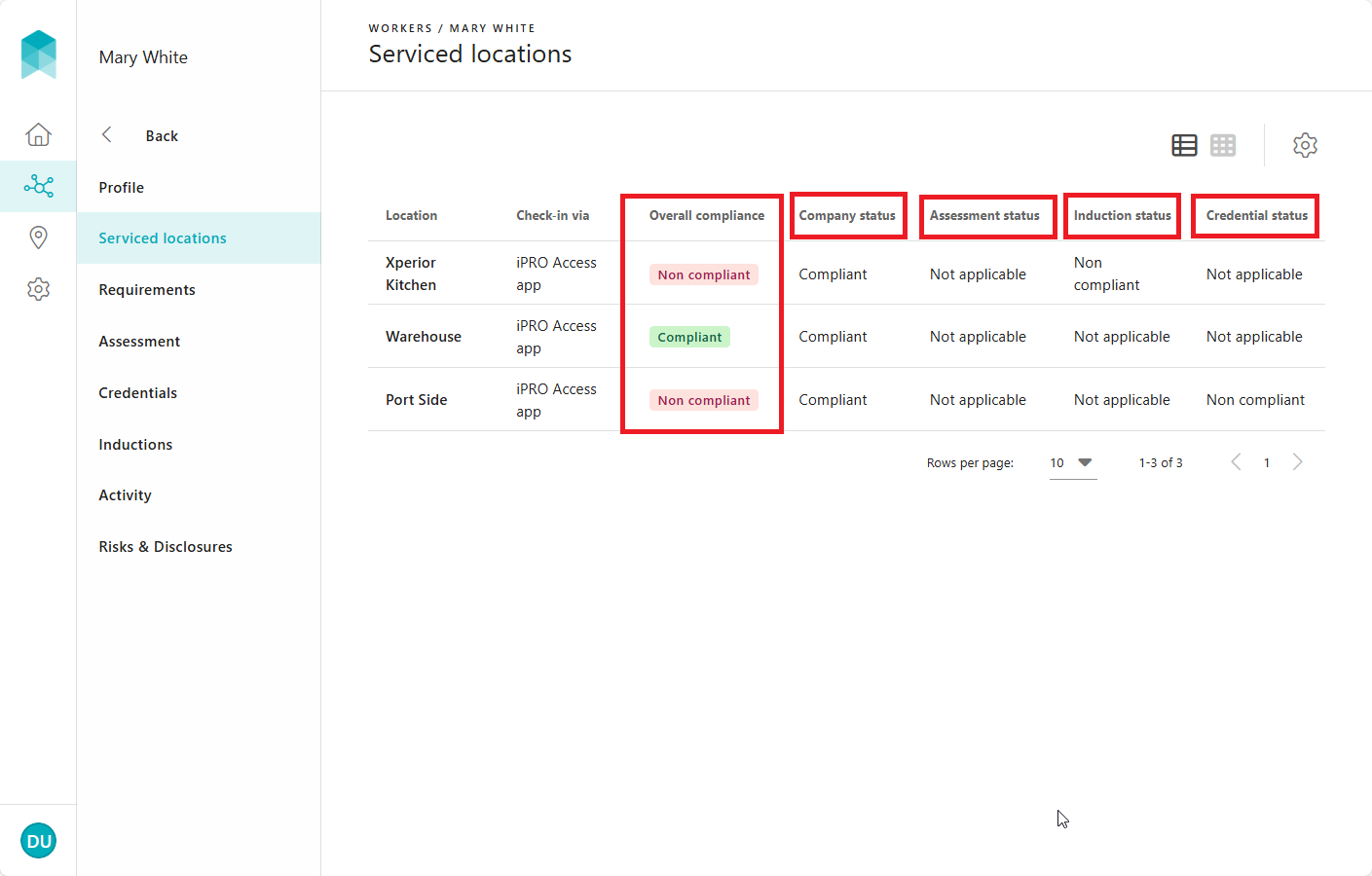
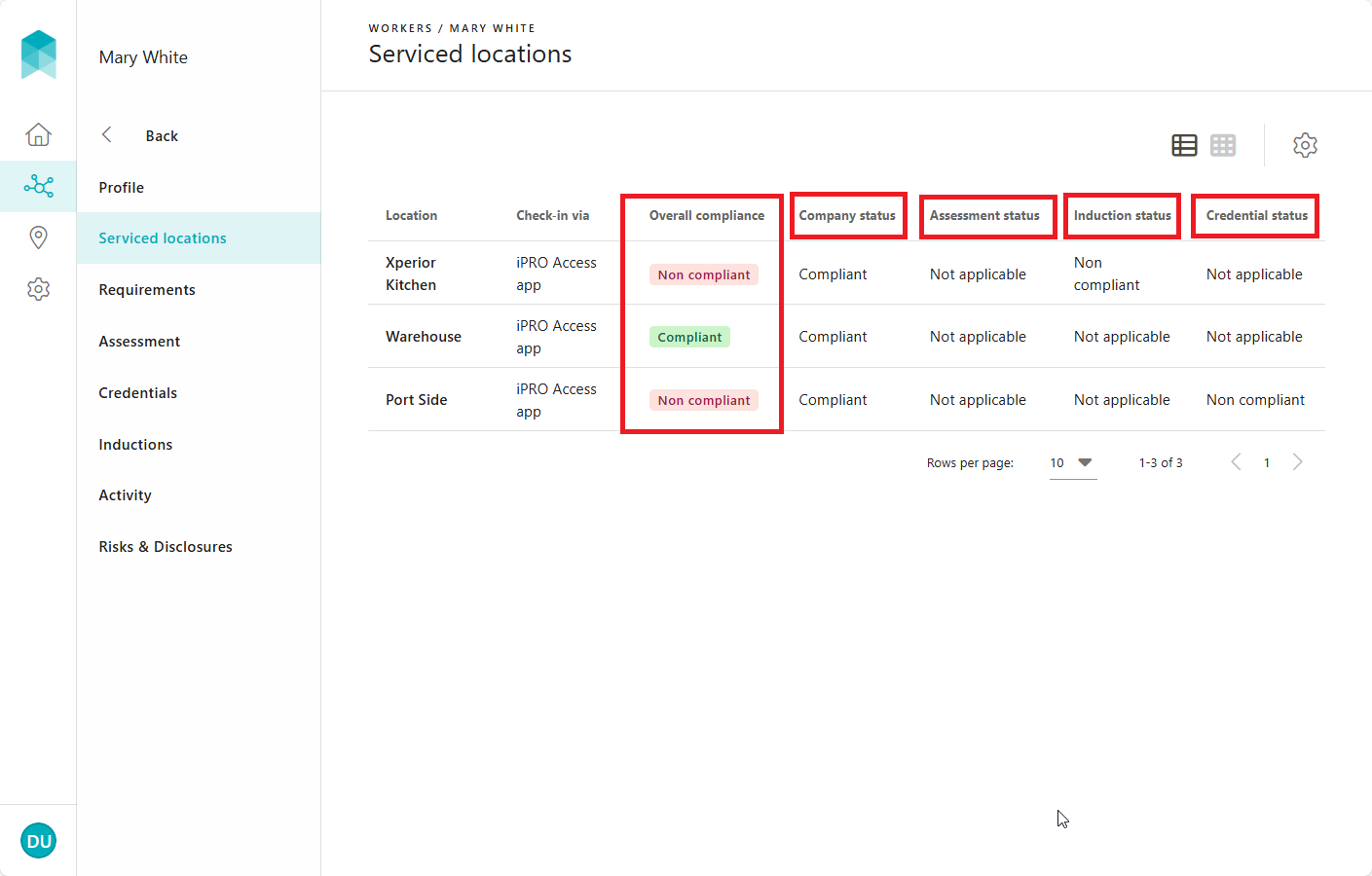
- View the status in the Overall compliance column for a particular location. This status is determined by the combined results of the "Company status", "Assessment status", "Induction status", and "Credential status".
For definitions of each status, please refer to the "Overall Compliance Status Definitions" below.
Viewing a Worker's Compliance Status from the "All companies" menu
- Click My network, then click the company that has registered the worker.
Tip: Use the filters at the top of the list to find the company quickly. - Click Workers. The company's workers linked with your account will be listed.
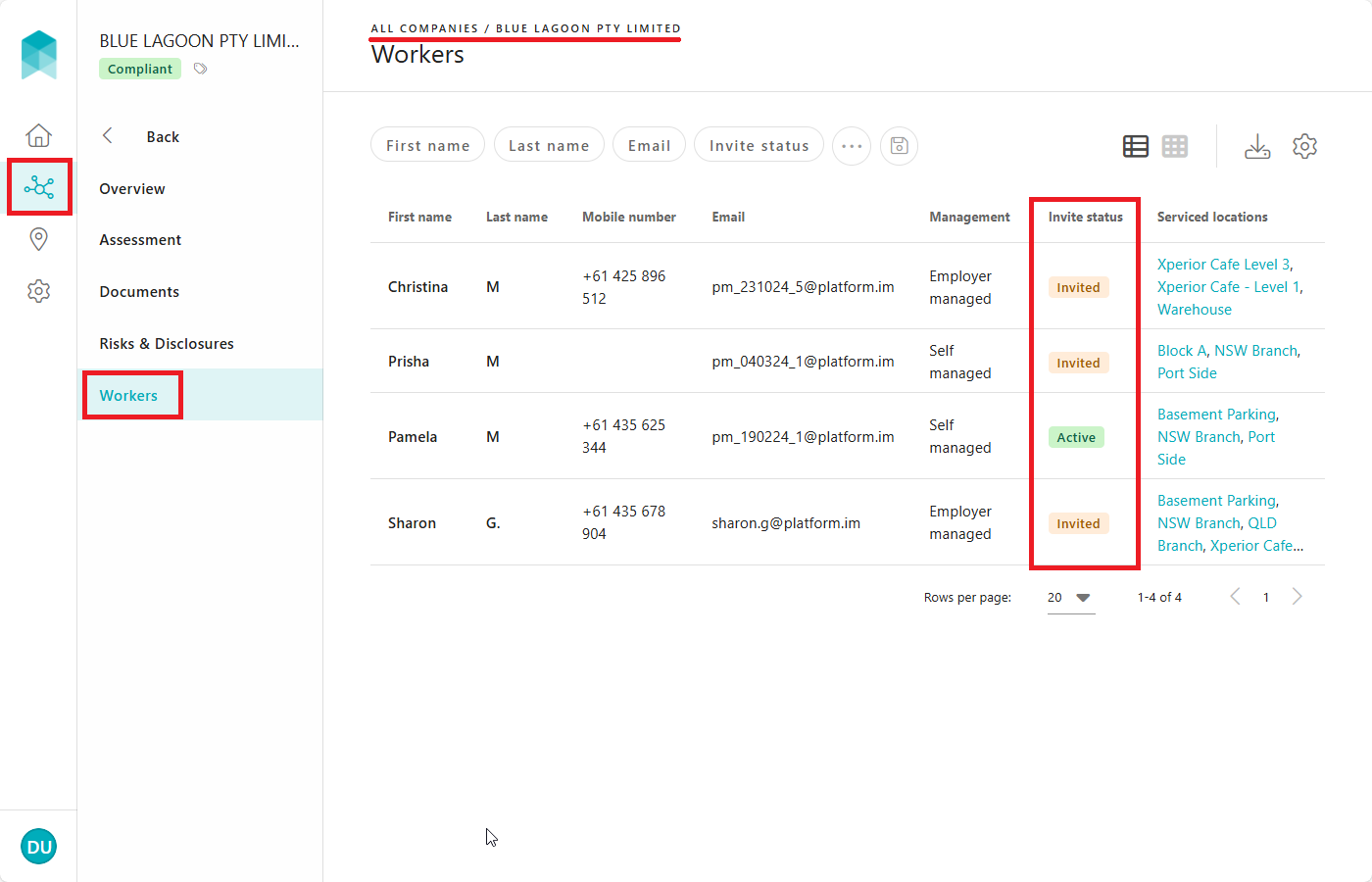
Please note, the status displayed in the worker list indicates a worker's invitation status; it is not indicative of their compliance status. For more information regarding the invitation status, please refer: Understanding a Worker's Invitation Status.
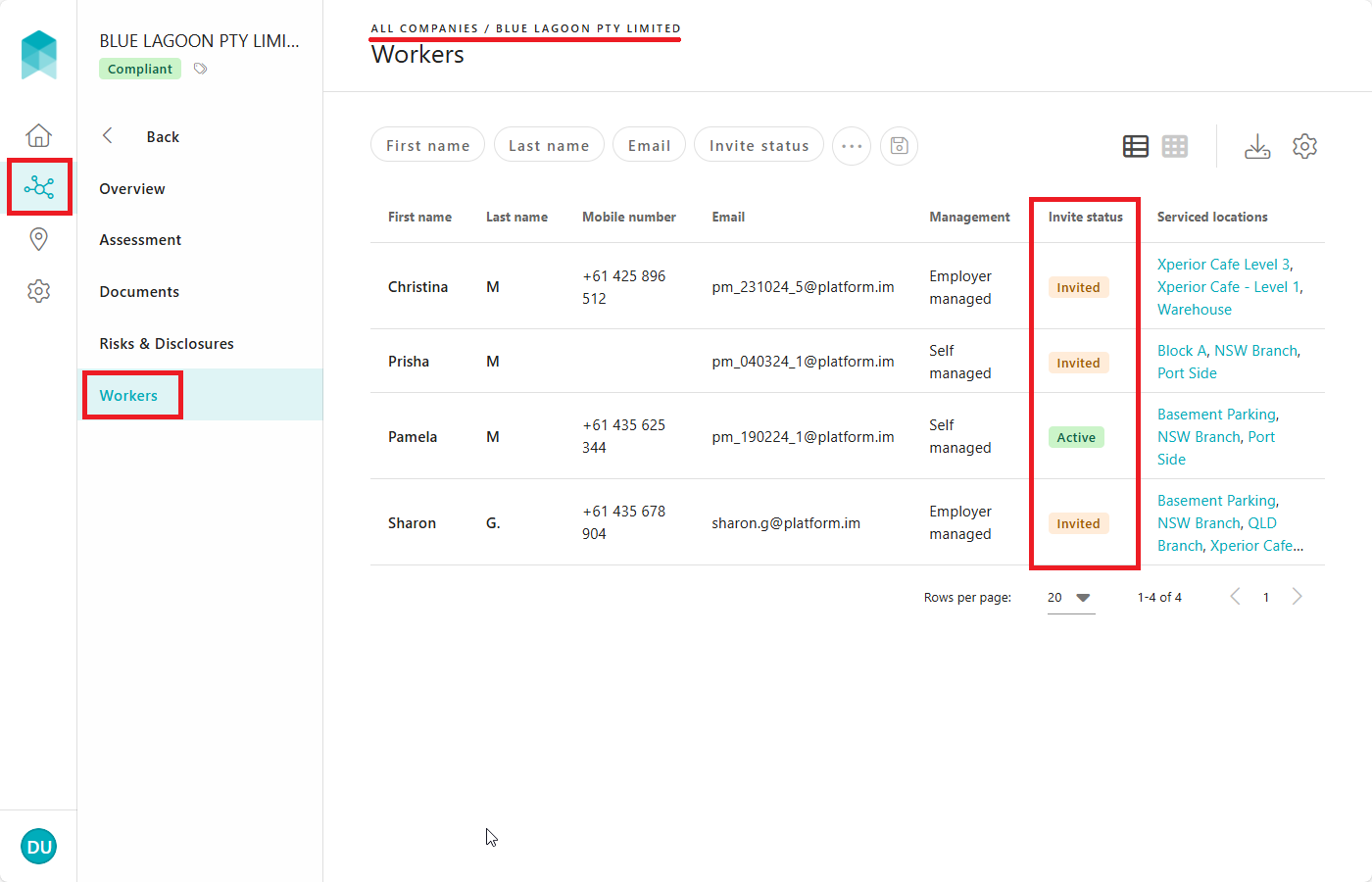
- Click the worker's record. Their Profile page will appear.
Tip: Use the filters at the top of the list to find the worker quickly.
-
Click Serviced locations. A list of locations linked with the worker will be displayed.
-
View the status in the Overall compliance column for a particular location.
Overall compliance of a worker is determined by the combined results of the " Company status", "Assessment status", "Induction status", and "Credential status".
Overall Compliance Status Definitions:
- Compliant: All tasks are complete. If applicable, the worker may check-in successfully at the location.
- Non compliant: One or more tasks are outstanding. This status is reflected in one or more of the requirements: 'Company status', 'Assessment status', 'Induction status', and/or 'Credential status', indicating the following:
- Company tasks: Outstanding company level tasks are visible on the company's Overview page, and must be completed by a user registered on the company account. For more information, please refer: Understanding a Company's Compliance Status.
- Worker tasks: The worker must complete specific assessment, induction and/or credential requirements. To view the worker tasks in detail, click the location. Tasks requiring attention will be displayed.