Understanding a Company's Compliance Status
This article is intended to help clients view their contractor's compliance status.
Quick Tips
- A summary of a company's compliance requirements is shown on its Overview page.
- The compliance requirements of a company is not shown when a company has an Inactive status. Please reach out to the contractor requesting they renew their subscription.
- To re-connect a disconnected company, contact iPRO Customer Care Team at helpdesk@ipro.net.
Quick Navigation:
Log in > My network > All companies > Find and click on a company
Viewing a Company's Compliance Status
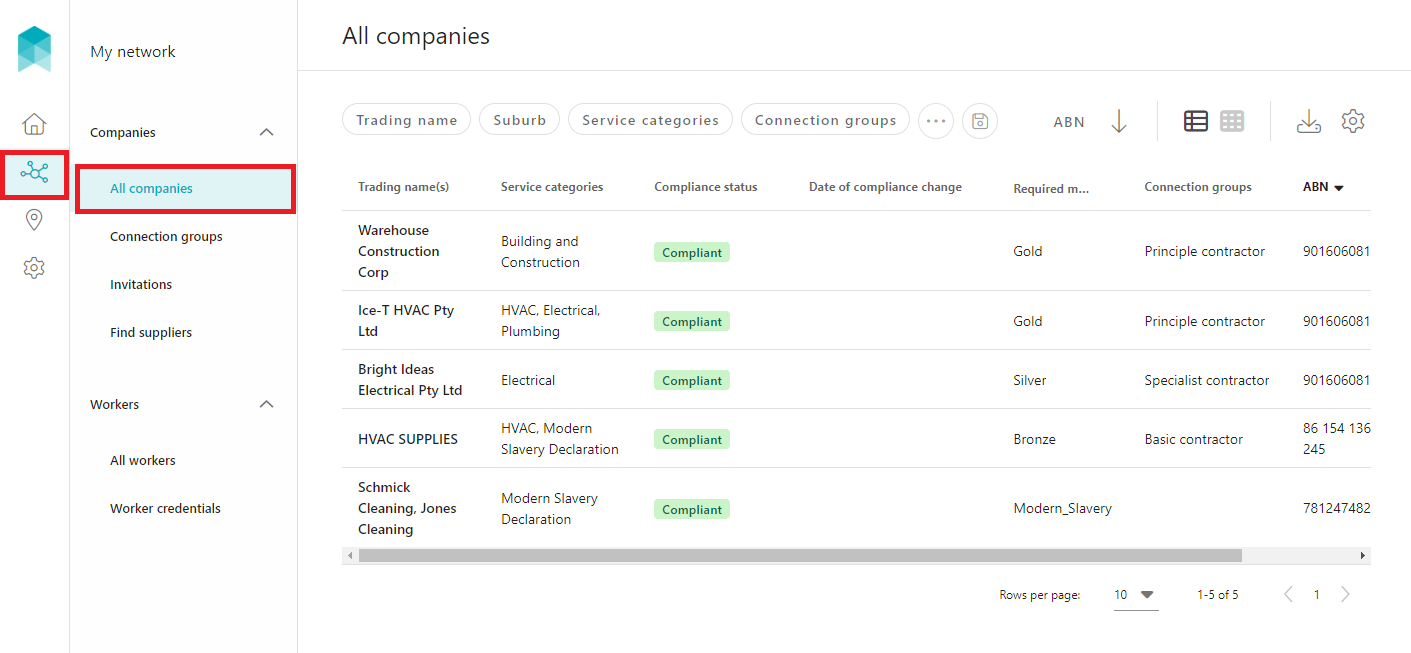
- Click My network in the left-hand menu - a list of All companies in your network will be displayed.
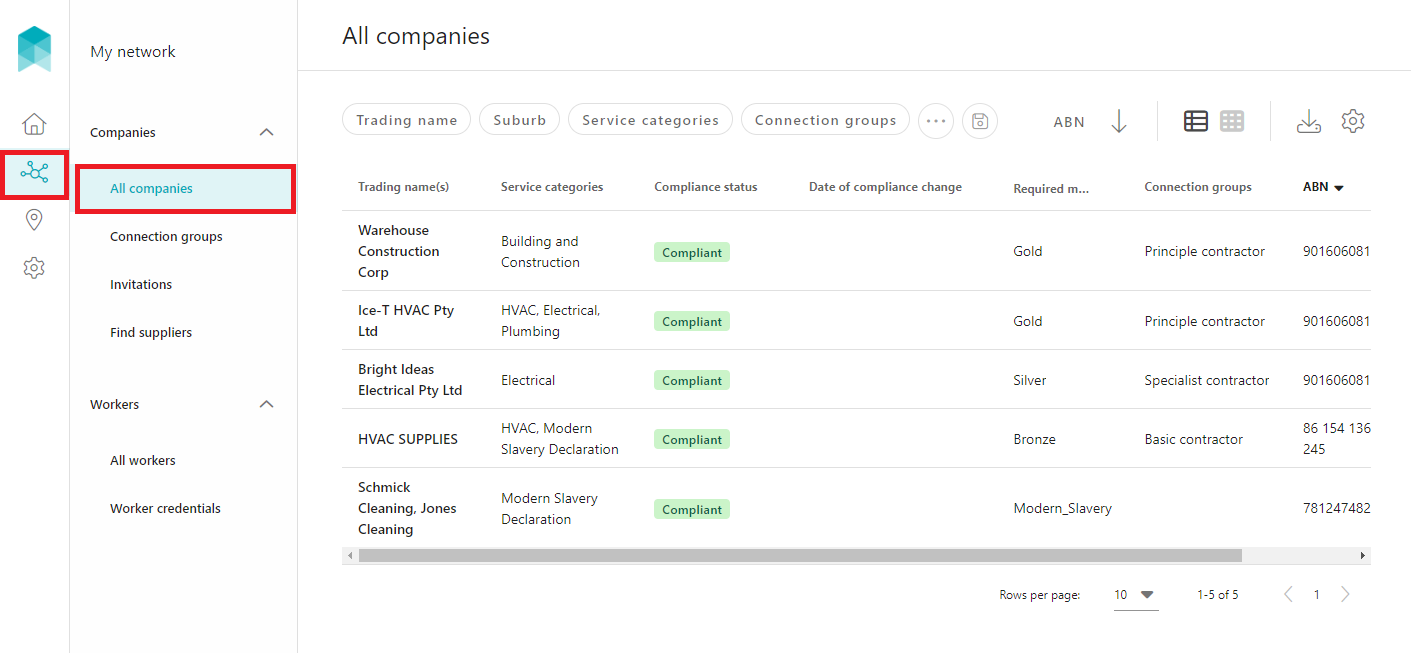
- The list will show the compliance status for each company; each status is explained below:
- Compliant: All compliance requirements have been fulfilled, and there are no outstanding tasks for this company.
- Non-compliant: There are outstanding tasks that need addressing by the company to fulfill compliance requirements. These are shown in the Overview page.
- Pending Compliance: The company has accepted the invitation to connect with your iPRO account, but has not yet completed their application. There are outstanding tasks that need addressing. These are shown in the Overview page.
- Inactive: The company's iPRO subscription has expired and has not been renewed. Please reach out to the contractor to request that they renew their subscription.
- Invited to connect: The company has not yet accepted the invitation to connect with your iPRO account. Please reach out to the contractor to request that they accept the invitation.
- Disconnected: The company is no longer connected with your iPRO account. To re-connect the company, please contact iPRO Customer Care Team on helpdesk@ipro.net.
Tip: To view companies with this status, use the 'Compliance status' filter above the companies list.
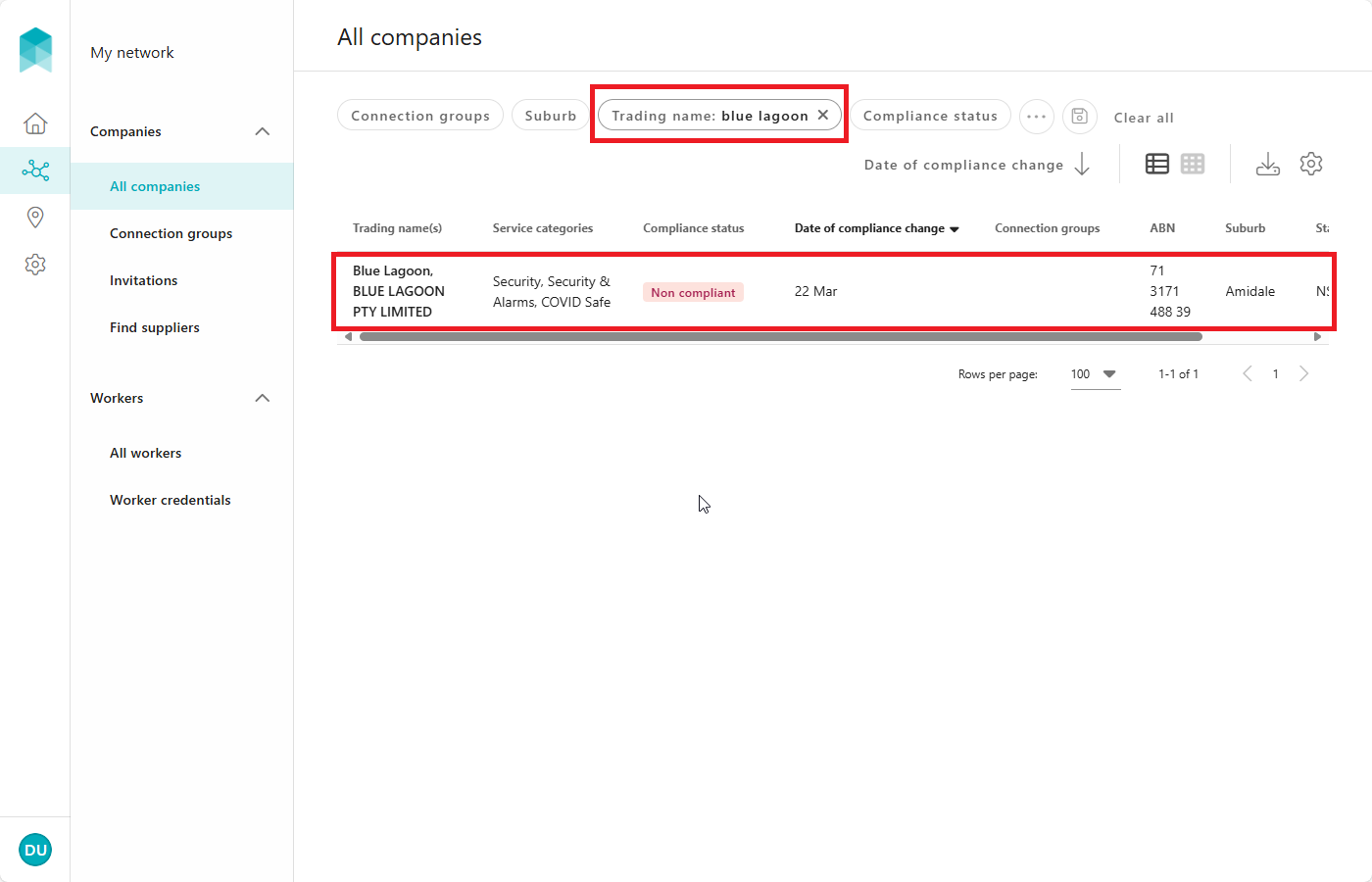
- To view a company's compliance requirements, find and click on the relevant company. You will be directed to the Overview page.
Tip: Use the search filters above the companies list to find a company quickly. For more information, refer article : Using Filters when Searching.
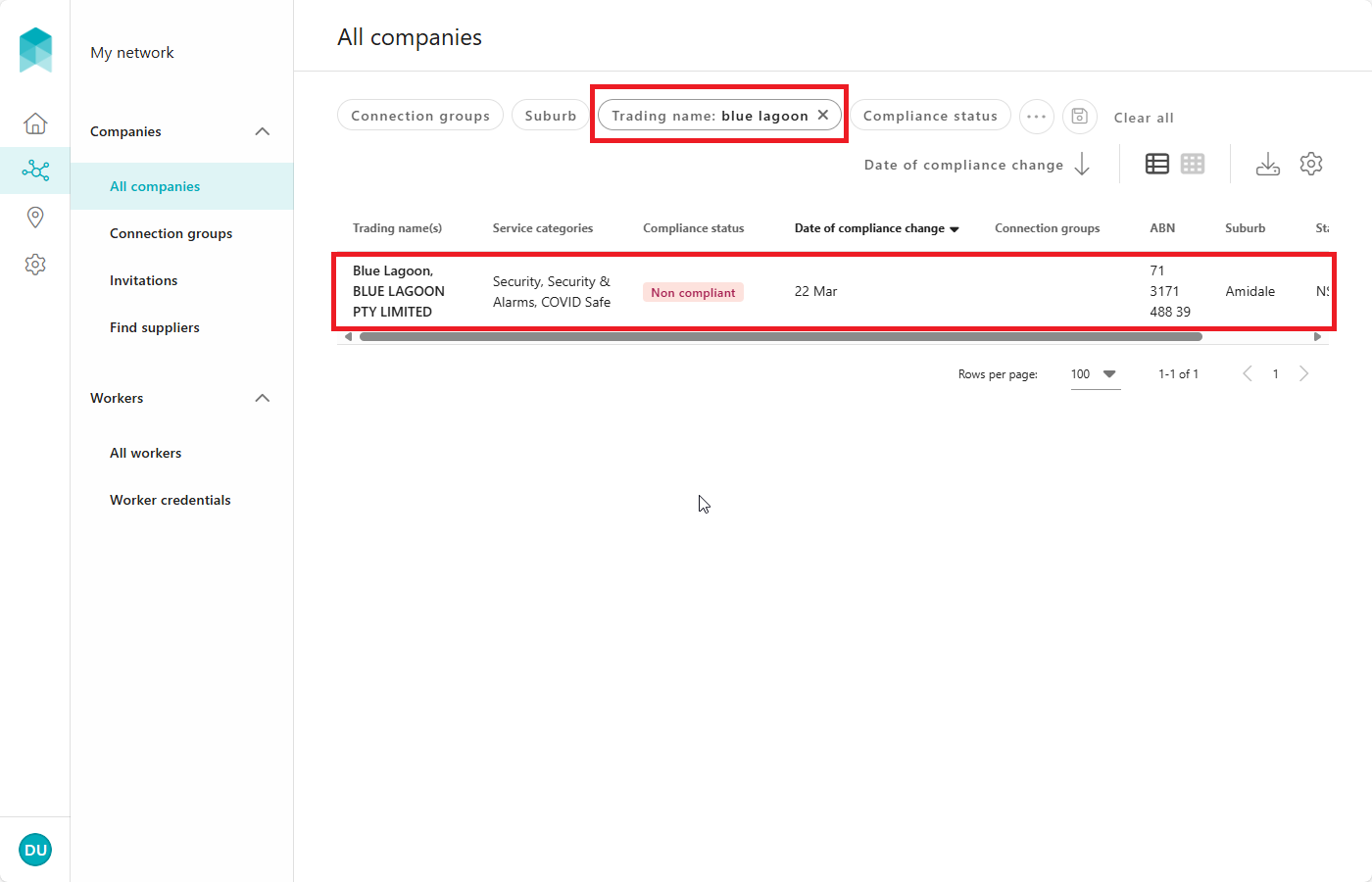
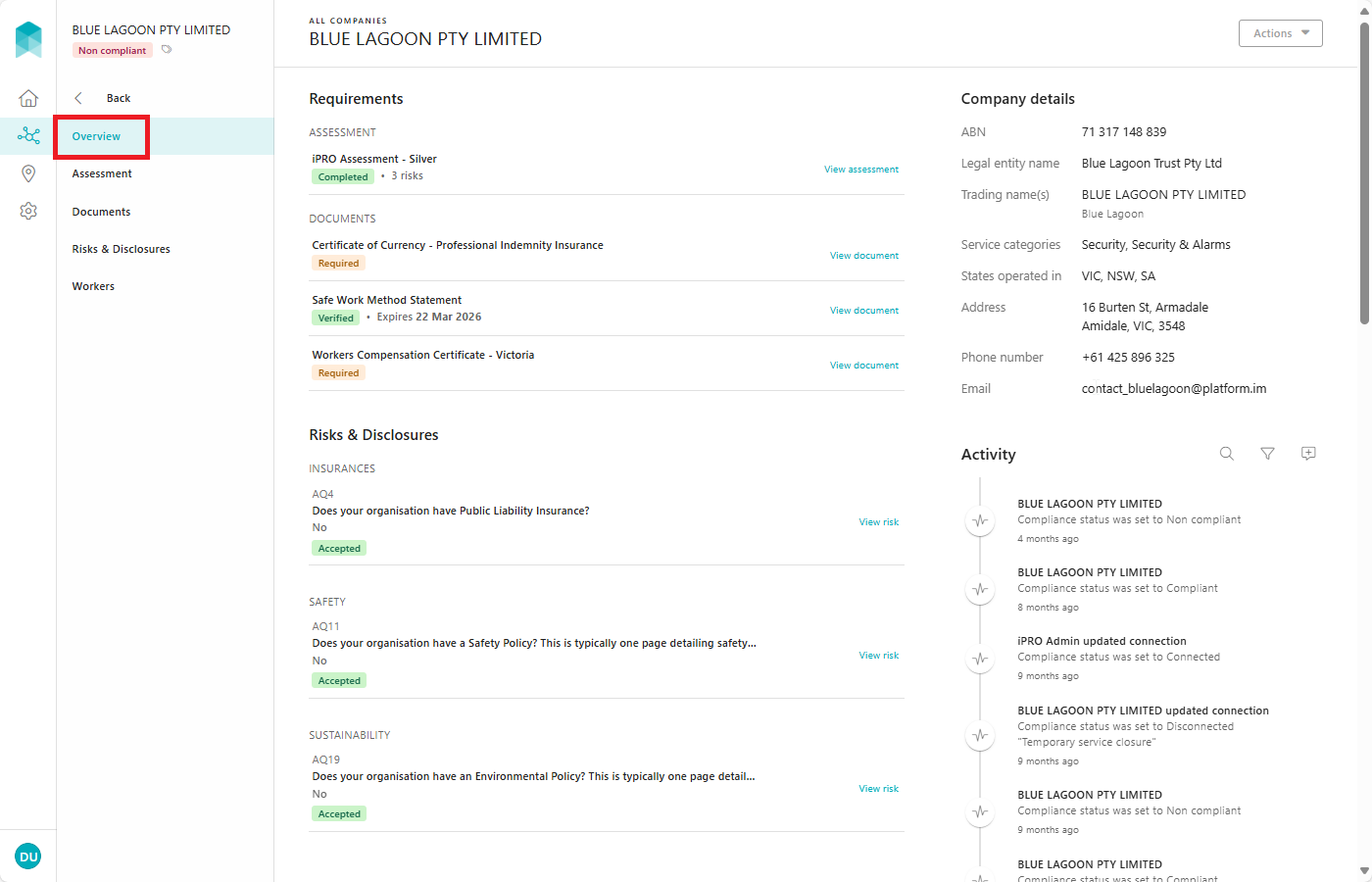
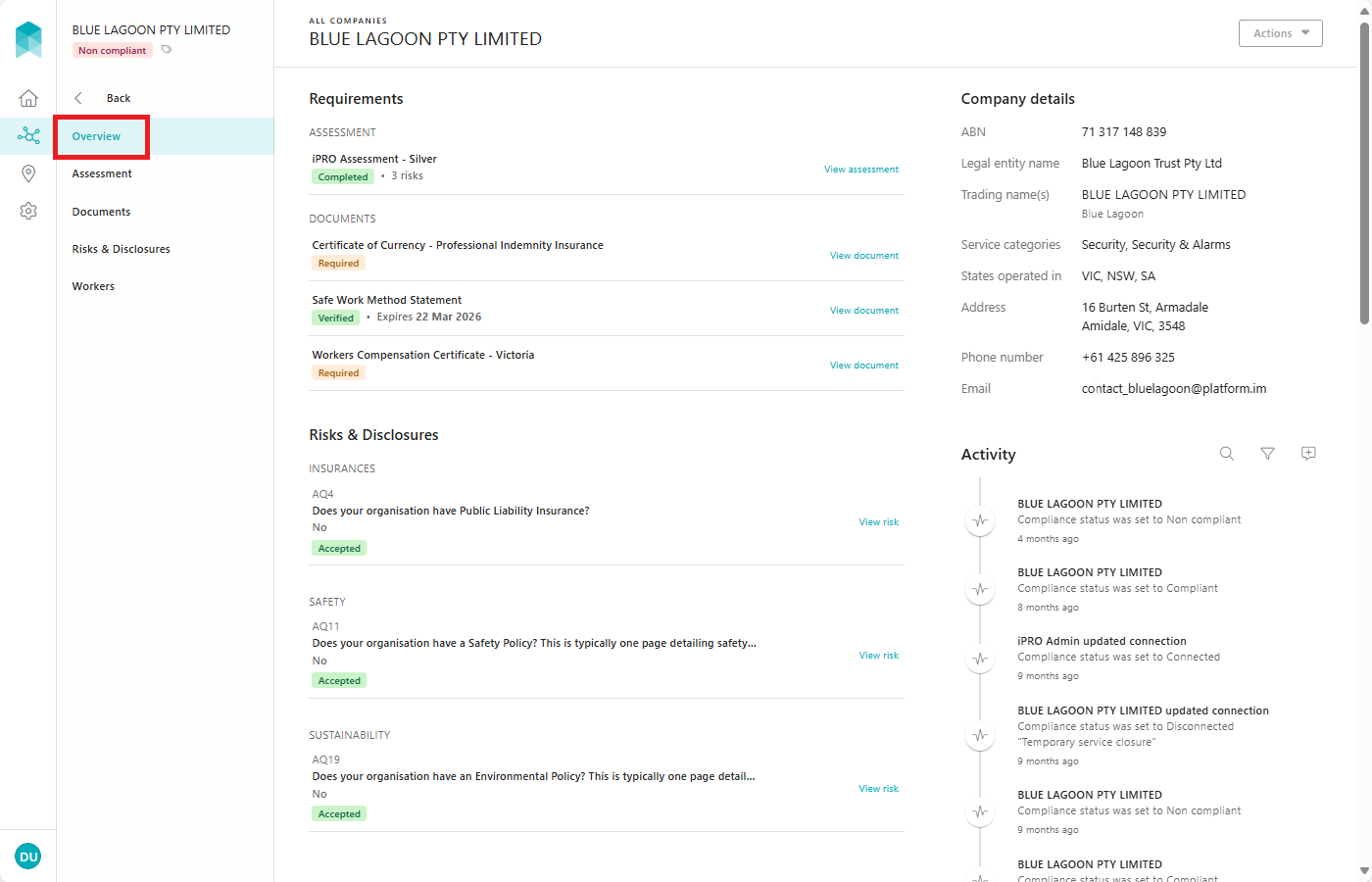
- The Overview page provides a summary of the status of each compliance requirement, such as assessment, documents, as well as flagged risks and disclosures. The completion status is highlighted below each requirement. For a more detailed view, please select the corresponding option in the left-hand menu.
Please note: worker compliance information will only appear if your iPRO account has worker compliance requirements configured.