Managing your Subscription
Quick Tips
- Your iPRO subscription will auto-renew on the next billing date if a valid payment card is linked to your company account.
- A courtesy reminder email is sent 7 days before the auto-renewal of an annual subscription, allowing the registered User(s) to modify or cancel their payment.
Note: only User(s) with send notifications enabled will be sent the reminder. - To stop auto-renewal, remove your payment card. Your account will become inactive after your current subscription ends.
- While your account is inactive:
- linked client(s) cannot view your company's compliance information. This may limit your ability to work at client sites.
- registered workers will receive an error when checking in, preventing them from accessing the client's site.
- documents pending verification and account profile changes will not be processed by the iPRO Compliance Team.
Quick Navigation:
To stop a payment:
Log in > PAYMENT > remove the payment card > Confirm
To make a payment:
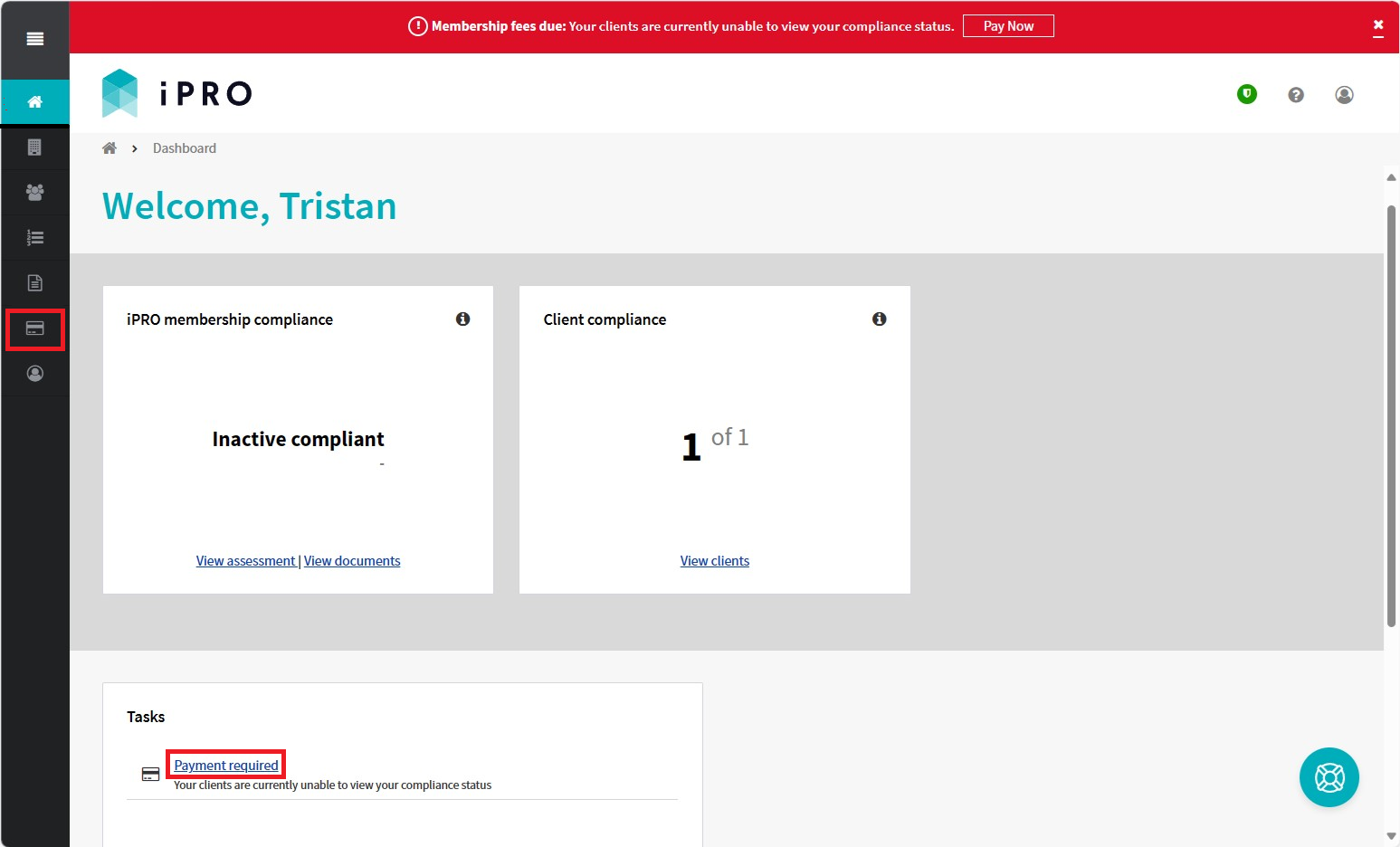
Log in > DASHBOARD > Pay Now > Choose plan > enter payment card details > Save card
or
Log in > DASHBOARD> Tasks > Payment required
or
Log in > PAYMENT
To stop a payment:
To pause or cancel your subscription renewal, remove the payment card. The auto-renewal will not be processed and your account status will change to Inactive at the next billing date.
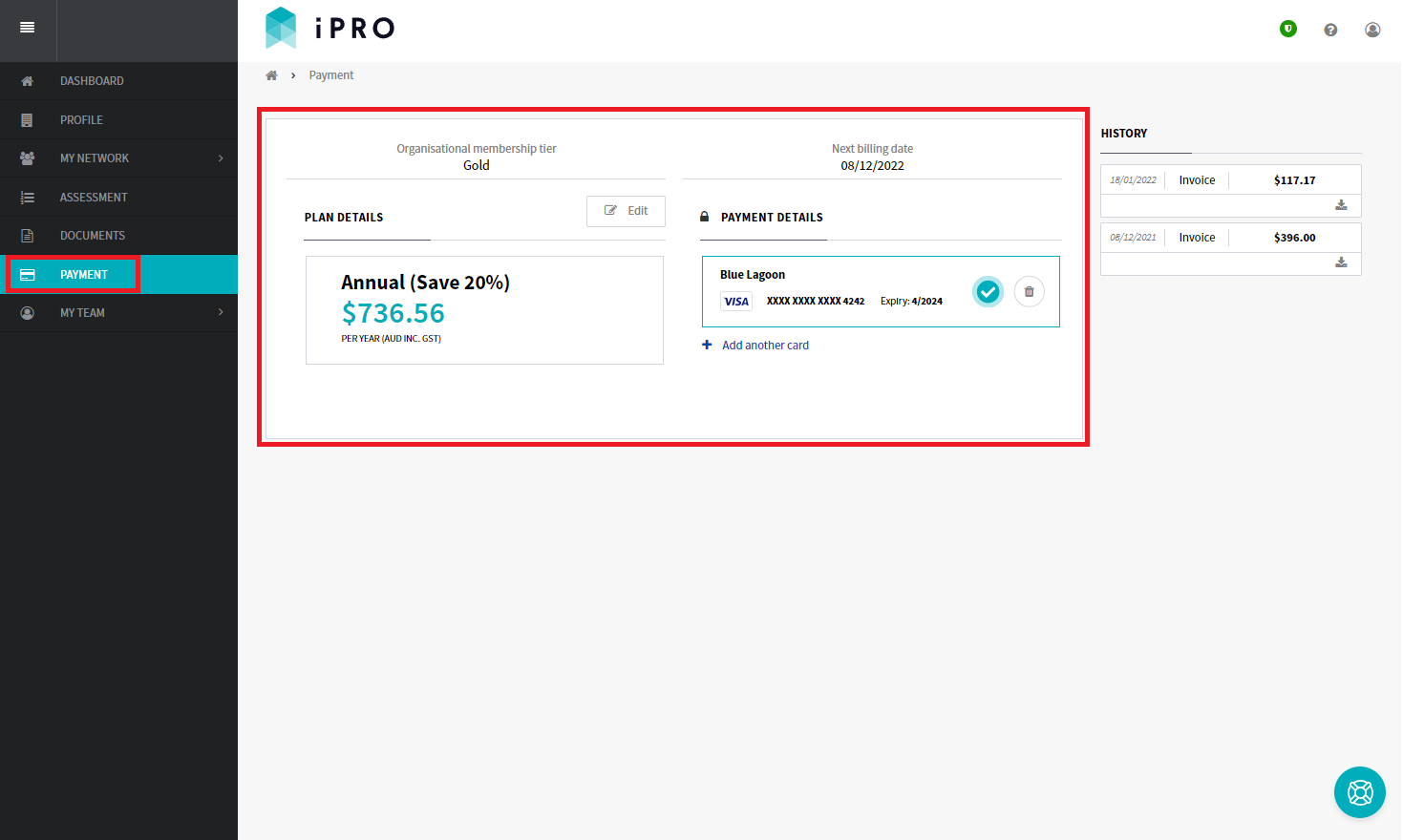
- Click PAYMENT in the left hand side menu. The company's payment information will be displayed.
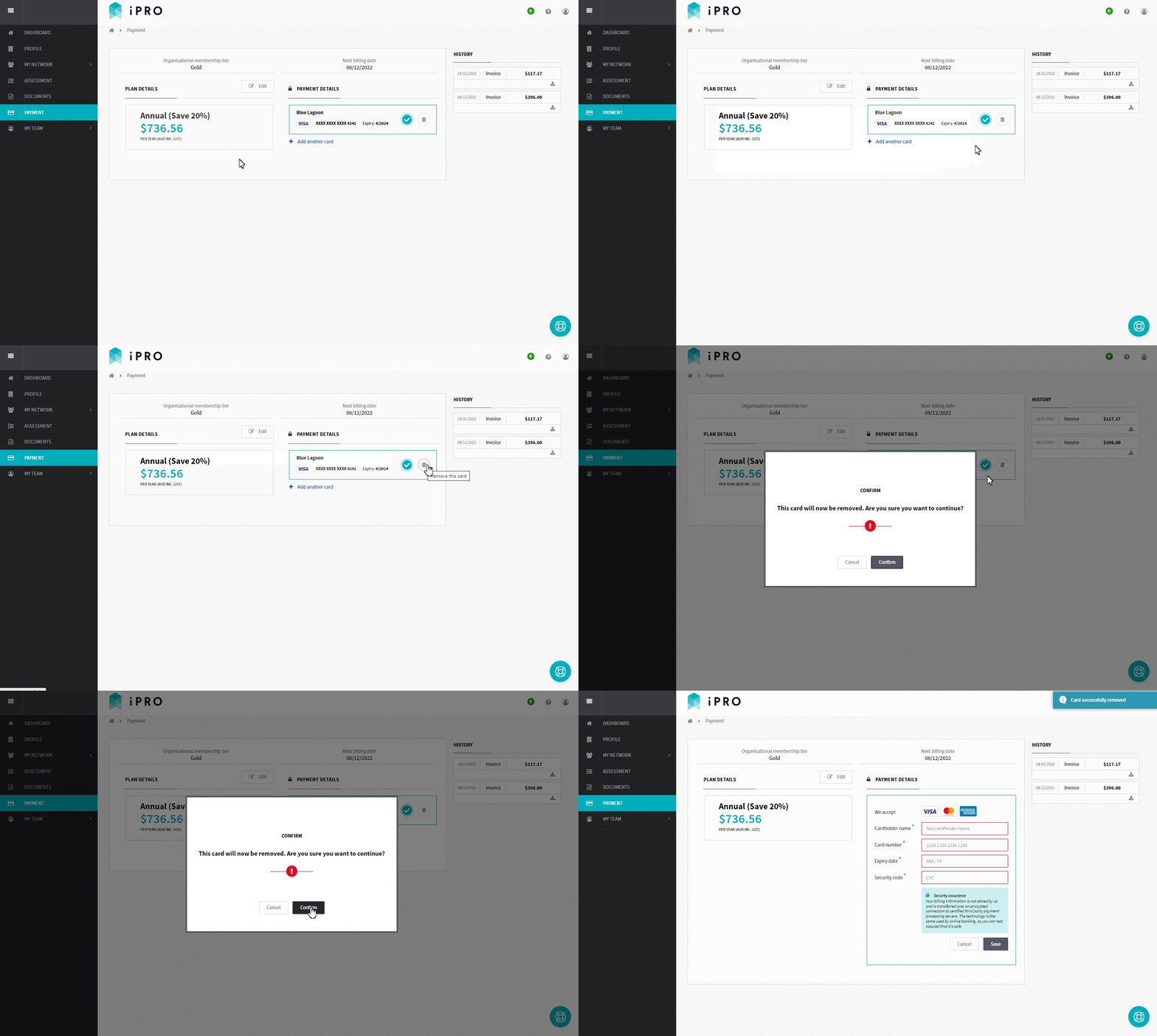
- Click Remove this card indicated by the bin icon. When presented with the notification, click Confirm. A notification will confirm that your card has been removed.
No payments will be processed until you add a payment card. Your account will become inactive after your subscription ends.
To make a payment:
To activate your subscription, you can either:
- click Pay Now that appears at the top of the Dashboard, verify your payment plan, and enter your card details, or
- click the Payment required link within the Tasks section of the Dashboard, verify your payment plan, and enter your card details, or
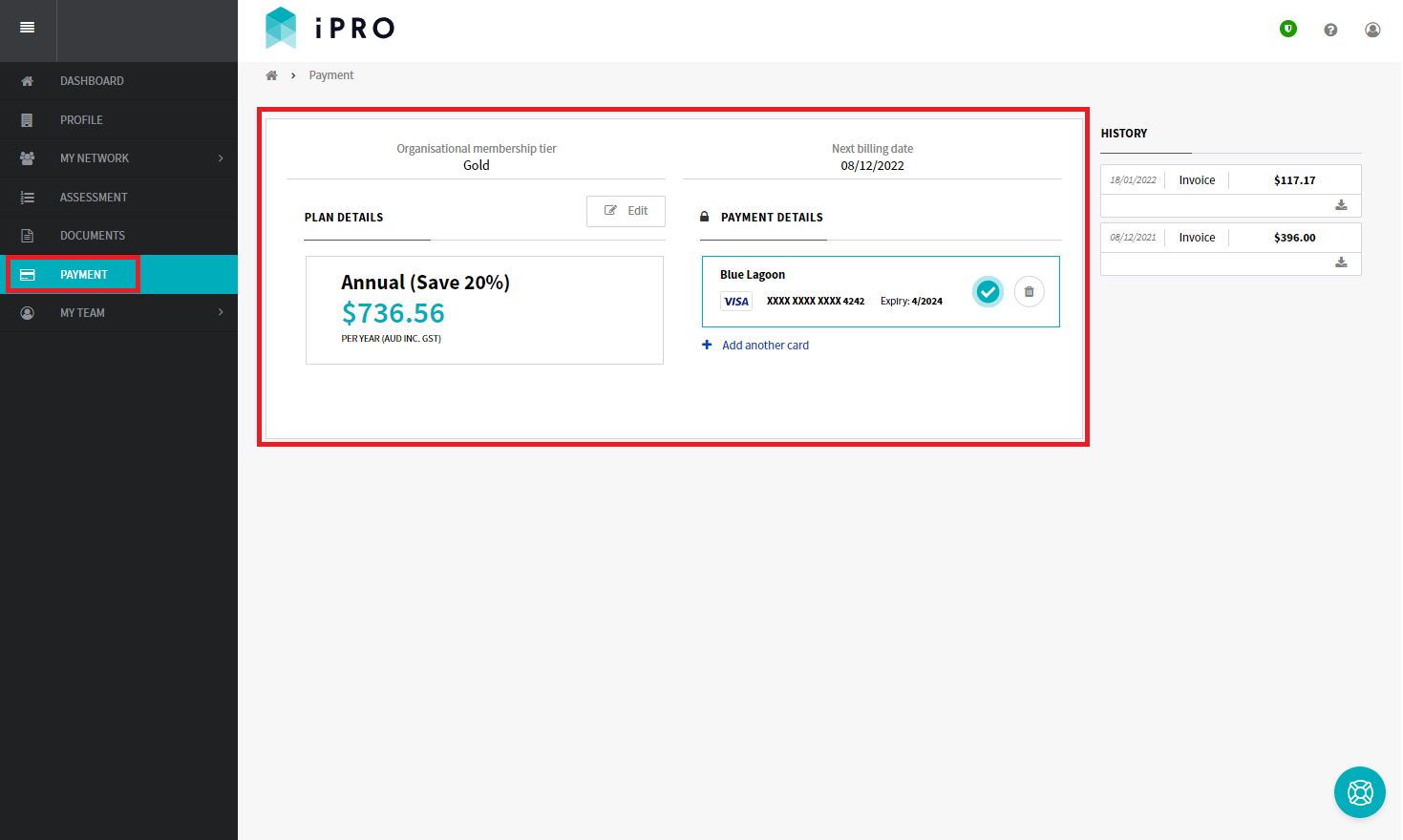
- click PAYMENT in the left hand side navigation menu, verify your payment plan, and enter your card details.
Once processed, your account status will update to Active, and a tax invoice/receipt will be emailed to you. If you prefer, you can remove your card details after the transaction to prevent future automatic charges.